Content Decay
Pages slowly losing the clicks they used to get, and a recovery plan for each.
In appWorkspacesContent Decay
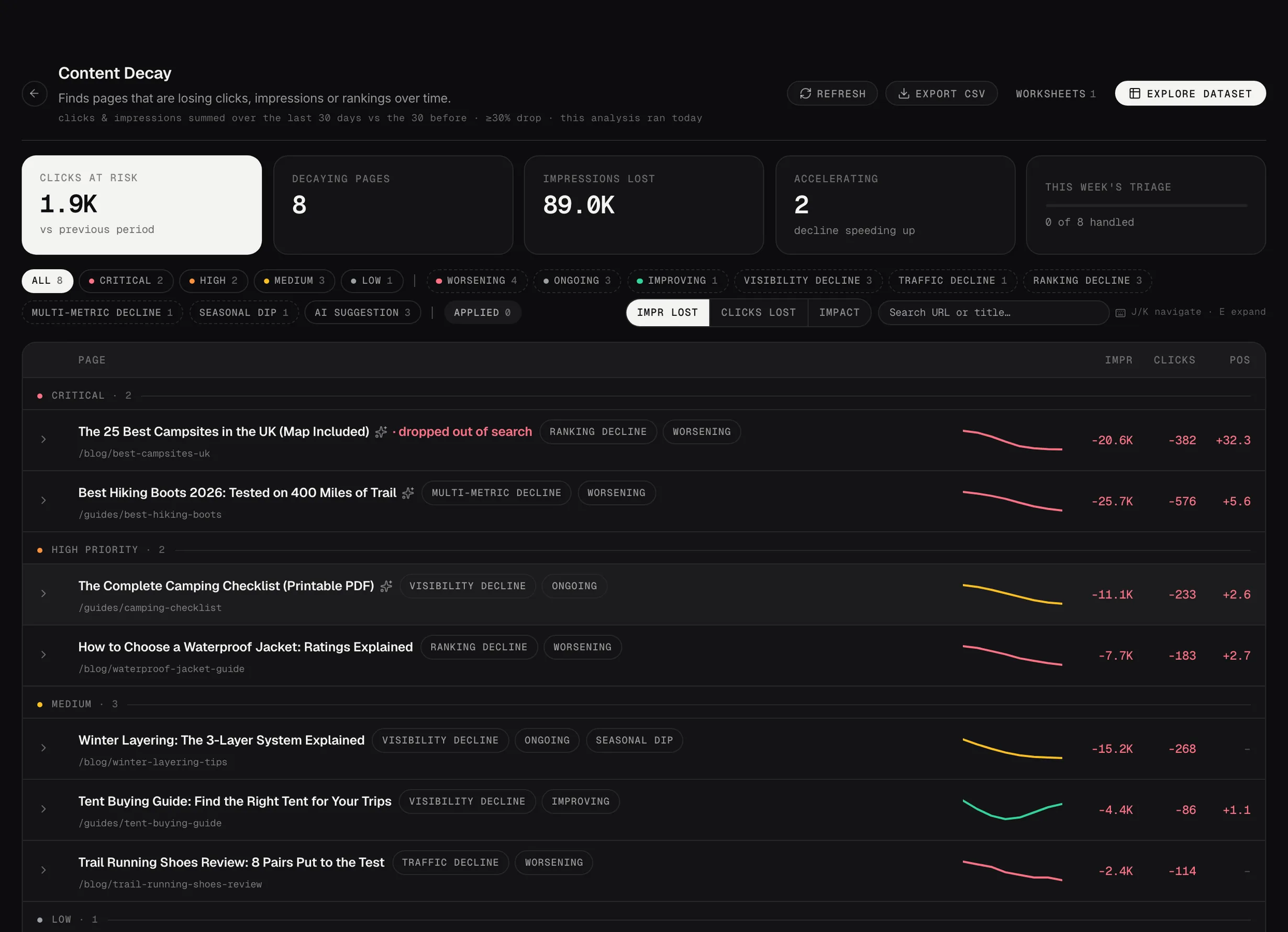
Content Decay: pages losing clicks, ranked by severity, with the trend for each.
Demo dataWhat counts as decay
A page that used to bring in search traffic and now brings in less. Searchscope compares each page against its own history rather than against a benchmark, so a page that was never strong doesn't show up as decaying.
Seasonal drops are separated from real decline where the data allows it, which is why a page can fall a long way and still not be listed.
Reading a finding
The chart shows clicks and impressions over time, so you can see when the drop started. That date usually points at the cause: a redesign, a competitor's new page, or an algorithm update.
The chips on the row say what kind of decline it is. A page losing impressions has a different problem from one holding impressions and losing clicks: the first has slipped in the rankings, the second is being out-clicked where it still appears.
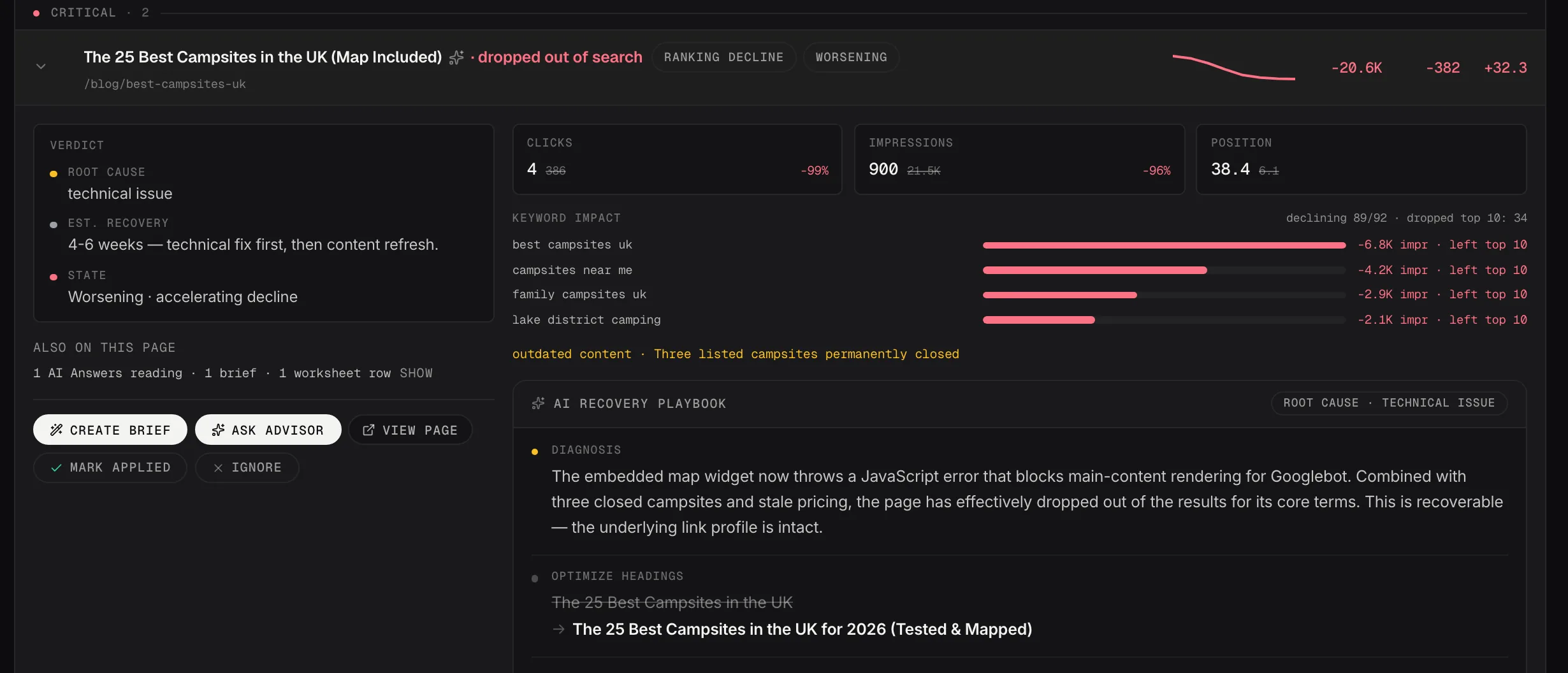
One decay finding: the root cause, the queries that carried the loss and the recovery playbook.
Demo dataWhat to do with it
Create brief turns the recovery plan into a Content Studio brief for that page, carrying the queries it used to win and has since lost.
Ask Advisor checks the plan with your Strategist first, which is worth doing when the drop is large or the page matters commercially.
Lookback, and businesses with a season
Two settings shape this list, and neither is in Content Decay itself. Both are in Settings, on the Data Pipeline tab: find Content Decay in the analyzer list and click Configure. That panel is where every analyzer is tuned, exclusions included, so it's the one route worth remembering.
Lookback period is how far back it compares. Min traffic drop is how big a fall has to be before it counts as a finding.
The default compares against the previous period, which is right for a business with steady demand and wrong for one with a season. If you sell more in summer than winter, every autumn looks like catastrophic decay and every spring looks like a recovery you had nothing to do with.
Two ways to handle it. Set Compare with to the same period last year, so each page is measured against itself at the same point in its cycle. Or push the lookback far enough back that a full cycle is inside the window.
There's also a Seasonal business switch in Settings under Business Context. Turning it on nudges Content Decay onto the year-on-year comparison for you, and you can still change it in the analyzer's panel afterwards.
Working through a lot of them
Any workspace can become a worksheet: a live sheet with status, priority and notes that your team works through together. That's the better tool when there are more findings than one person will get to in a sitting.
Working a finding
Open any finding and you can take it somewhere else without retyping it. Ask Advisor opens the Strategic Advisor with that finding and its full context already loaded, so you can ask why it matters or what to do first and get an answer using your own numbers. Create brief (or Rebuild in Studio) opens a Content Studio session for the page, pre-filled the same way.
Both carry the finding with them. You're not starting a conversation or a brief from nothing, which is the whole point of launching them from here rather than opening the Strategic Advisor or Content Studio cold.
Most findings also carry an AI Playbook: a written recommendation for that specific page. Some are generated automatically after a run, the rest are generated when you ask. You can also tick several rows and generate advice for all of them in one go, with the cost shown before anything runs. How many are written automatically is the Auto-generate for top setting in that analyzer's Configure panel, and zero means they're only written on request.
Mark applied does more than tick it off. The page joins Impact Tracking in Command Center, which then follows its clicks, impressions and position from that date onward, so you can see what happened after the change.
Getting rid of one you don't want
Ignore on any finding hides it. It leaves the queue and moves to the Ignored pill in the filter rail, where Restore puts it back, so nothing is destroyed. The Ignored pill only appears once you've ignored something.
Ignoring handles one finding. If the same pages keep coming back, add them to Excluded pages in Settings, under Data Pipeline: find Content Decay in the analyzer list and click Configure. One pattern per line, * as a wildcard, and plain text matches anywhere in the URL. Matching pages stop becoming findings from the next run.
That's the difference worth knowing: ignoring hides one finding, excluding a page stops future findings for it. Tag pages, author archives and paginated listings are the usual candidates.