Cluster Volatility
Whole topics moving up or down, rather than single keywords.
In appWorkspacesCluster Volatility
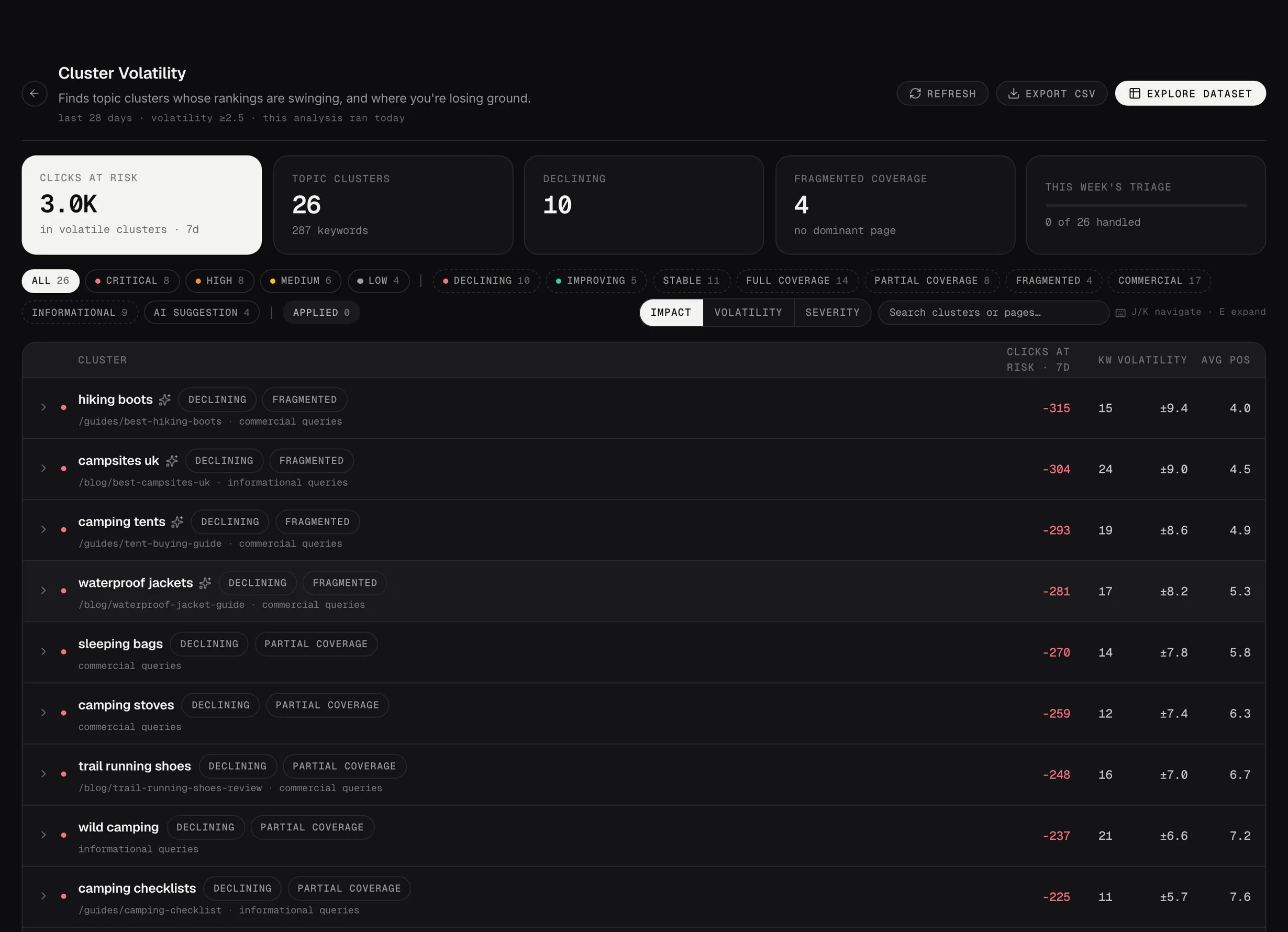
Cluster Volatility: topics whose rankings are moving, and the clicks at risk.
Demo dataTopics, not keywords
Your keywords are grouped into clusters that mean roughly the same thing to a searcher. A single keyword moving is noise. A whole cluster moving is a signal.
That's why this list is worth reading even in a week where nothing dramatic happened to any individual term.
Reading a cluster
Each row carries how much search demand the cluster holds, how much of it you capture, and which way it's moving. The sub-line names the kind of searches in it.
The question to ask on a declining cluster is whether you have one page that properly covers the topic, or several that each cover part of it. The second is a common cause of a whole cluster slipping at once.
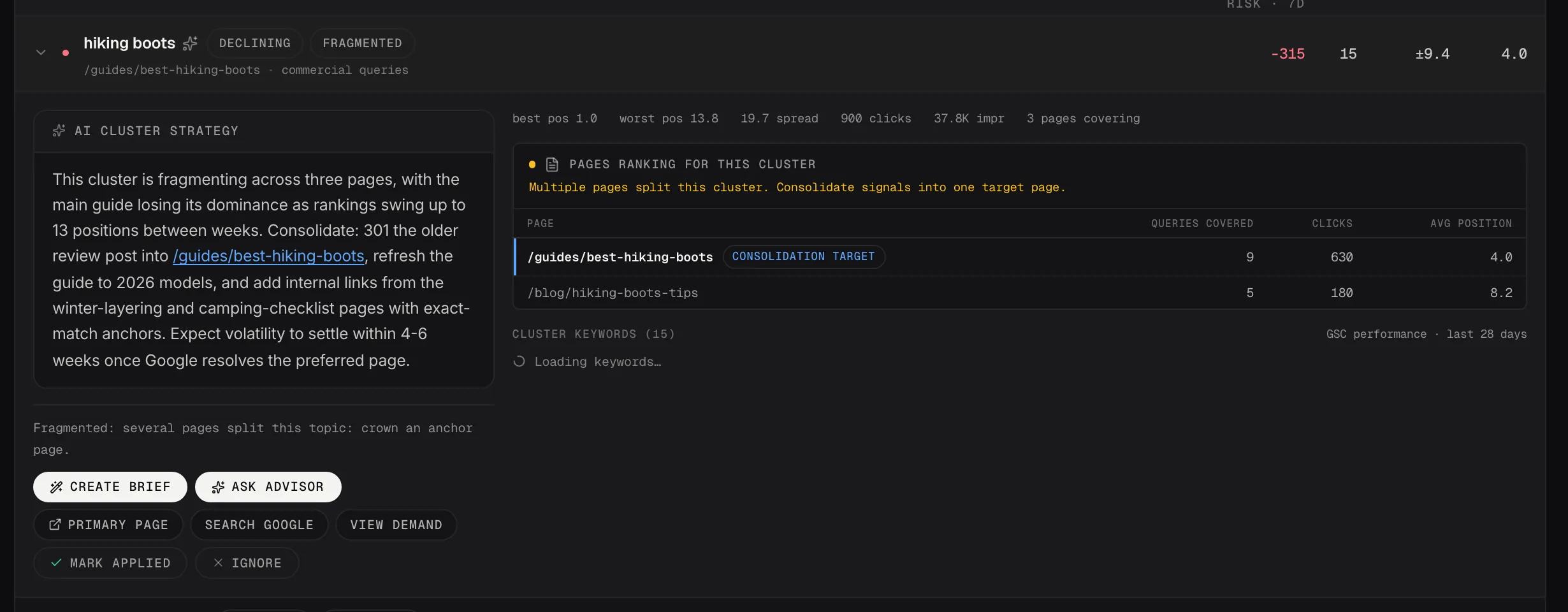
One topic: the pages splitting it, the dominant page and how to consolidate.
Demo dataWhat to do with it
Create brief starts a page for the topic in Content Studio.
Ask Advisor asks your Strategist the question this list usually raises: build a new page for the cluster, or merge the ones you already have.
Working a finding
Open any finding and you can take it somewhere else without retyping it. Ask Advisor opens the Strategic Advisor with that finding and its full context already loaded, so you can ask why it matters or what to do first and get an answer using your own numbers. Create brief (or Rebuild in Studio) opens a Content Studio session for the page, pre-filled the same way.
Both carry the finding with them. You're not starting a conversation or a brief from nothing, which is the whole point of launching them from here rather than opening the Strategic Advisor or Content Studio cold.
Most findings also carry an AI Playbook: a written recommendation for that specific page. Some are generated automatically after a run, the rest are generated when you ask. You can also tick several rows and generate advice for all of them in one go, with the cost shown before anything runs. How many are written automatically is the Auto-generate for top setting in that analyzer's Configure panel, and zero means they're only written on request.
Mark applied does more than tick it off. The page joins Impact Tracking in Command Center, which then follows its clicks, impressions and position from that date onward, so you can see what happened after the change.
Getting rid of one you don't want
Ignore on any finding hides it. It leaves the queue and moves to the Ignored pill in the filter rail, where Restore puts it back, so nothing is destroyed. The Ignored pill only appears once you've ignored something.
There's no Excluded pages setting here, because this analyzer works on keyword clusters rather than pages. If the whole list looks wrong, the thing to check is the crawl and your Target market, not an exclusion.