Data Pipeline
Where your data comes from, how to tune the crawl, and how to stop the analyzers reporting on pages you don't care about.
In appSettingsData
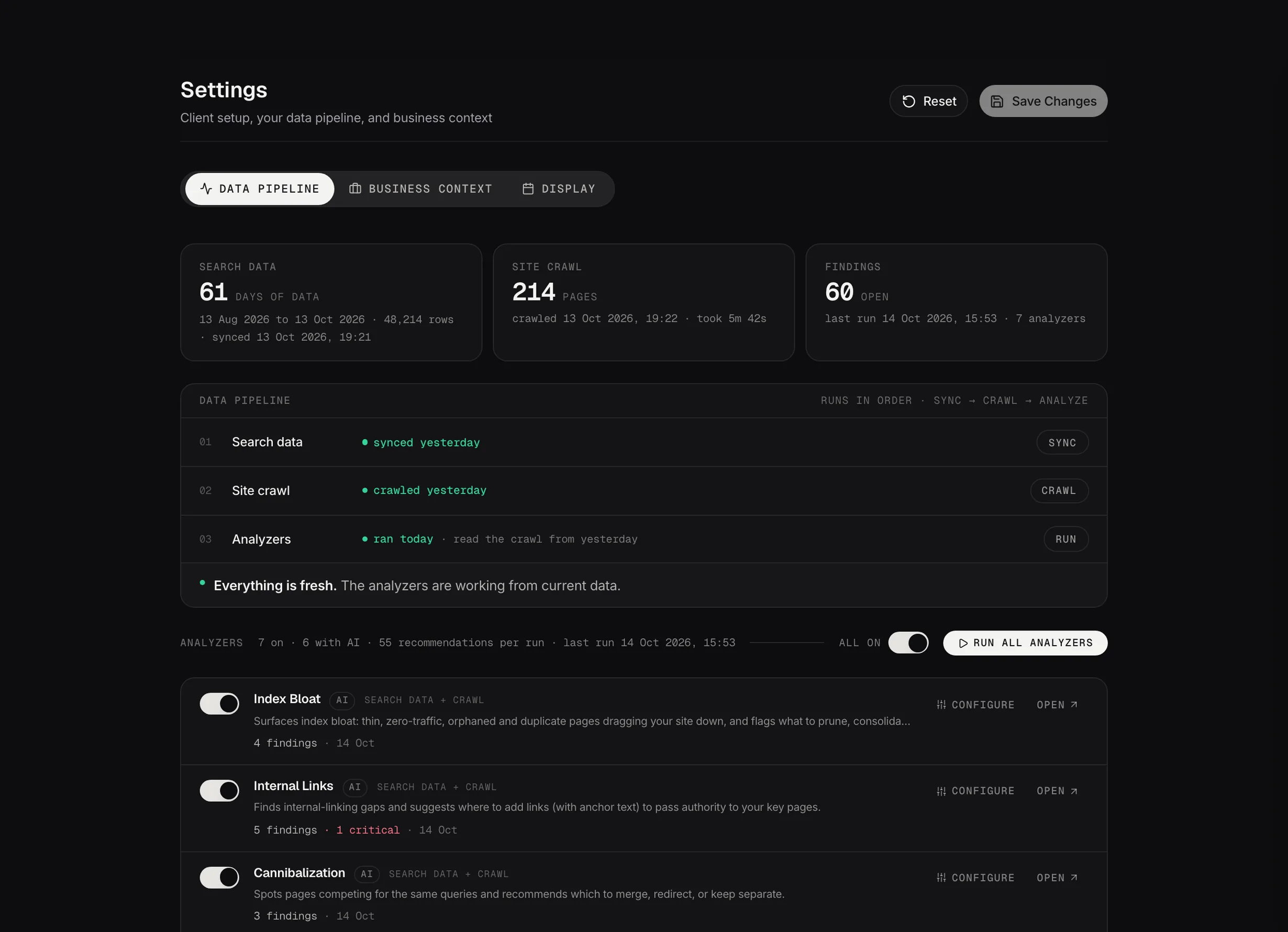
Settings: the data pipeline, from search data to the crawl to the analyzers.
Demo dataThe two sources
Google Search Console supplies what people searched for, what they saw and what they clicked. The crawl supplies what's actually on your pages.
Every analyzer reads from those two. That's why a finding can be out of date if either one is stale, and why this page is the first thing to check when a number looks wrong.
Reading the stages
The stages run in order: search data comes in, the site is crawled, the pages are grouped into topics, then the analyzers run against the result.
A stage that hasn't finished holds up everything after it. That's what a greyed-out workspace in the sidebar means, and it clears on its own.
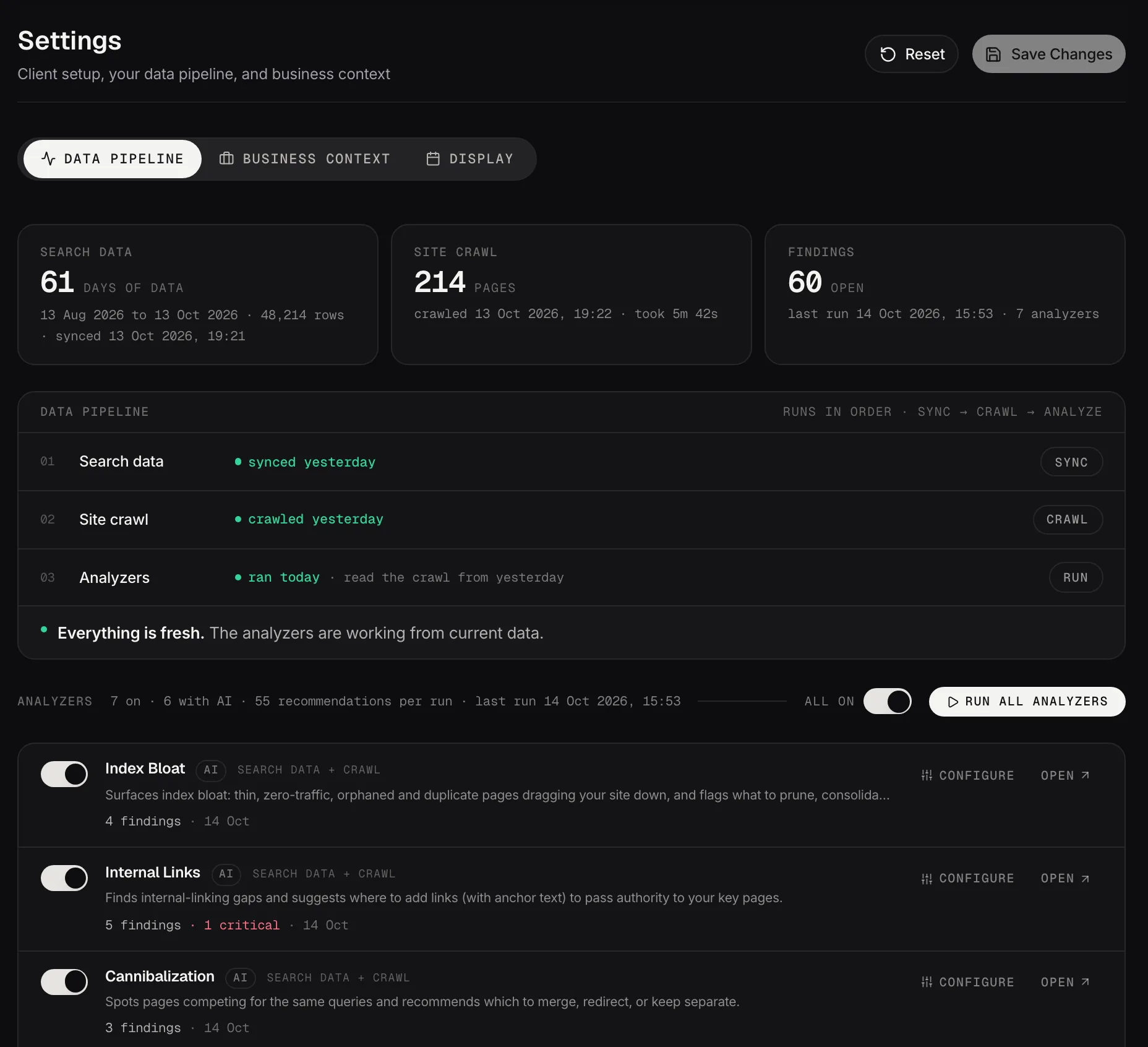
The data pipeline: search data, the crawl and the analyzers, run in order and checked for freshness.
Demo dataTuning the crawl
Open Site crawl to change what gets crawled. Crawl scope sets how many pages: Quick at 100, Standard at 500, Deep at 2000, or a custom number up to 10,000. On a large site the default won't reach everything, and a finding can only exist for a page that was crawled.
JavaScript rendering matters if your pages build their content in the browser. Without it the crawler sees an empty shell and your pages look thin when they aren't. Test render fetches one page and reports the word count, which is the quickest way to tell.
Under Fine-tune there's depth, parallel requests, crawl delay, timeout and the user agent. Most sites never need these. Crawl delay is the one to reach for if your server struggles while a crawl is running.
Excluding the parts of your site that aren't pages
Excluded paths, in the Site crawl panel, stops URLs being crawled at all. One pattern per line with * as a wildcard, so /admin/* or *.pdf. Use it for anything that isn't a page a searcher would ever open.
This is worth doing early. Crawl budget spent on admin pages and PDFs is budget not spent on your real pages.
Example. Say your careers section sits at /jobs/ and /roles/. Those pages are real and they may well rank. The point isn't how they perform, it's that you're never going to optimize them: nobody is going to rewrite a job advert for search. Left in, they fill your workspaces with thin-content findings, missing schema and internal-link suggestions that nobody will ever action, and every one of those pushes a page you do care about further down the list. Adding /jobs/* and /roles/* here keeps them out entirely.
That's the question to ask of any section: not whether it ranks, but whether you'd ever act on a finding about it. If the answer is no, it's noise in every list you open.
If you'd rather they were still crawled, because something else uses them, exclude them per analyzer instead. That's the next section, and it's the better choice when you only want them out of one list.
Filtering what each analyzer reports
Separate from the crawl, and a different setting. Each analyzer has a Configure button, and inside it Excluded pages: patterns that never become findings for that analyzer. Plain text matches anywhere in the URL, * is a wildcard, and it applies from the next run.
So a page can be crawled and still be excluded from one analyzer's findings. That's usually what you want: tag pages and author archives are real pages, they're just not worth a Content Decay finding.
The same panel lists the findings you've Ignored, each with Add to excluded pages, which is the fastest route from "I keep dismissing this" to "stop showing me this".
Cannibalization has one more: Excluded keywords. Matching queries are dropped from the analysis so they can't form a conflict. Brand searches are detected automatically; this is for the extras, like your careers or press terms.
Business context is on this page too
Business context is the next tab along, and the highest-return thing in Settings. The crawl settings decide which pages get looked at; Business context decides whether what comes back sounds like your business or like anybody's.
Twelve boxes, all optional. The ones that change the most are About the business, which nearly everything reads, and Commercial priorities, which is what stops advice being spread evenly across a site where the parts aren't equally valuable. Primary locations & markets, Differentiators (USP), Conversion goals, Brand voice, Style rules and Words & claims to avoid shape the writing rather than the analysis.
The Business context page goes through all twelve and what each one actually changes, including the two whose boxes promise more than they deliver.
Running one analyzer instead of all of them
You don't have to run the whole suite. Each analyzer in the list can be switched on or off, and the run button follows what you've picked: it reads Run all analyzers when everything is on, and Run selected analyzers when it isn't.
Useful when you've just changed one analyzer's settings and want to see the effect without waiting for the rest, or when you've added an exclusion and want that list rebuilt now.
The scheduled run has its own version of this, under Set the analyzers in the Scheduler, so a nightly run and a manual one can cover different ground.
When something looks wrong
Check the date on the last run first. Most surprises are a number from before a change you made, not a number that's wrong.
Search Console data arrives with a delay of a couple of days at Google's end, which is normal and not something Searchscope can shorten.
If a whole workspace looks noisy, the fix is usually an exclusion rather than ignoring findings one at a time. If the numbers look like the wrong market, that's Target market in Business Context, not a pipeline setting.